You can invite additional users to view reports, manage surveys and devices, and more.
User types
- Full Access – Subuser: similar access to the account admin. Can add, edit and delete surveys, devices and users.
- Read Only – Subuser: can view surveys, devices and reports, but cannot add, edit or delete anything.
Invite a new user
- Log in at app.surveystance.com.
- In the left sidebar under Account Settings, click Users, then click Invite User.
- Choose the User Permissions (Read Only or Full Access).
- Enter the user's email address, first name and last name.
- Optional: turn on Kiosk app device ID login to let this user sign in to the SurveyStance iPad app with their email and a Device ID.
- Under Product Access, choose what the user can see:
- Survey Kiosk: select All kiosk devices (includes any devices you add later) or Specific devices and pick them from the list.
- OneClick Survey: select the OneClick surveys this user can access.
- Click Submit.
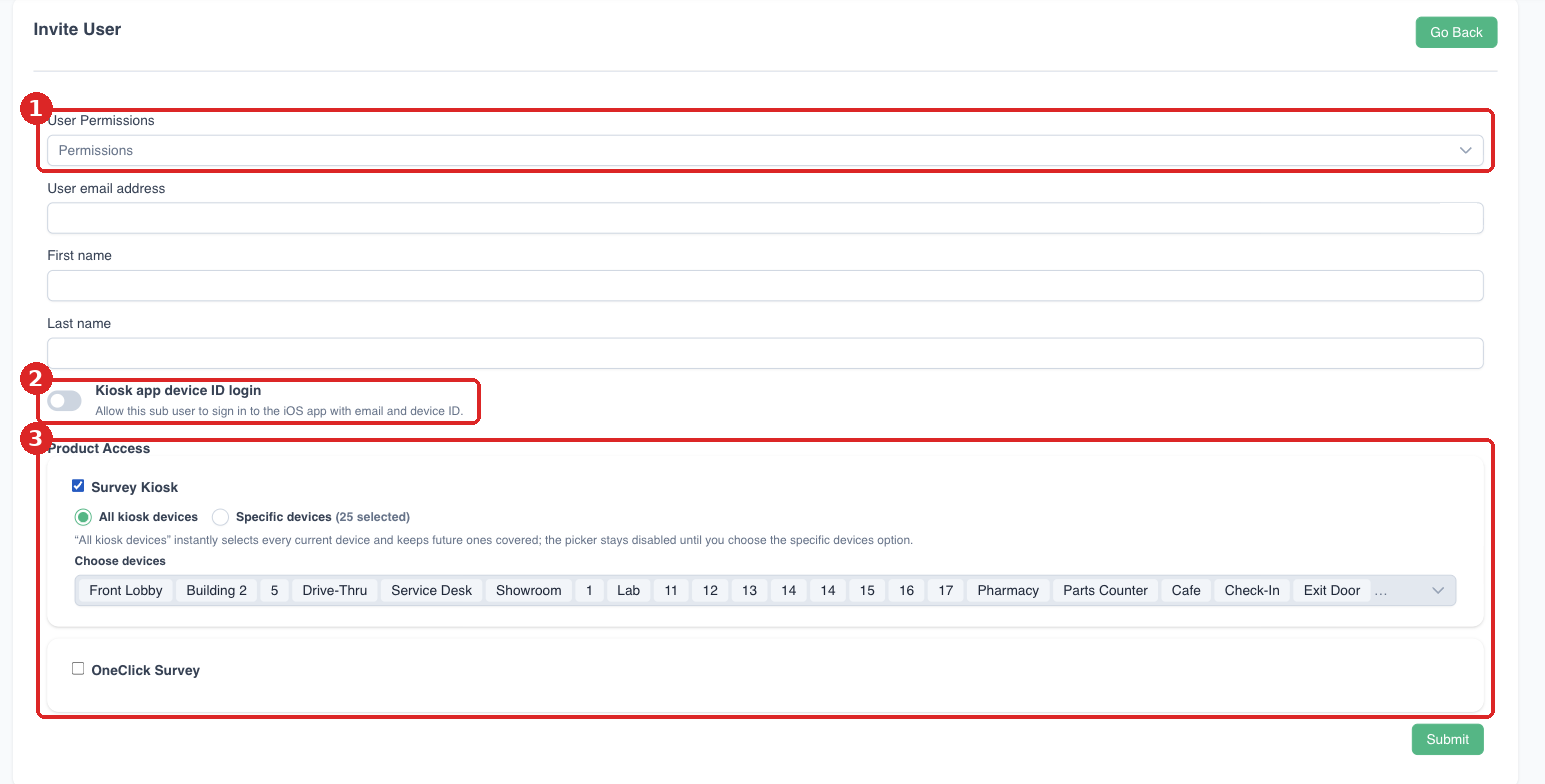
(1) Choose permissions. (2) Optional: allow iPad app sign-in with a Device ID. (3) Choose which products and devices the user can access.
Device access is now set right on the invite screen, so you no longer need a separate step to assign a device.
Manage existing users
On Account Settings > Users you can filter by role, device or name/email and see each user's assigned devices, OneClick surveys, permission and status. Use the Edit, Change Email, Reset Password and Delete actions on each row.